
How to use Google Workspace for remote teams

Introduction
Google Workspace is a comprehensive suite of cloud-based productivity tools designed to facilitate collaboration, communication, and file management. For remote teams, it serves as a centralized digital office, allowing members to work on documents, attend video meetings, and manage schedules from different geographic locations. By integrating various applications into a single ecosystem, it eliminates the need for constant file transfers and manual version tracking, which are common friction points in distributed environments.
Implementing this suite is essential for businesses and student groups looking to maintain high productivity without a physical workspace. Whether you are managing a small startup in Santo Domingo or a distributed creative agency, understanding how to leverage these tools correctly can significantly reduce operational chaos. This guide provides a structured approach to organizing your remote workflow using Google Workspace effectively.
Essential tools for remote collaboration
A successful remote setup relies on the seamless integration of different applications. Within Google Workspace, specific tools serve distinct roles in the daily lifecycle of a project.
Google Drive acts as the backbone of your operations. Instead of saving files locally on individual computers, every team member should store assets in shared drives. This ensures that if an employee leaves or loses a device, the company retains ownership and access to all critical data.
Google Docs, Sheets, and Slides allow for real-time co-authoring. This is perhaps the most powerful feature for remote teams, as multiple people can edit the same document simultaneously. You can see cursors moving in real-time, see who is making which changes, and use the comments feature to leave feedback without leaving the document.
Google Meet provides the necessary visual connection for meetings. For remote teams, video calls are vital for maintaining social cohesion and resolving complex issues that are difficult to explain via text.
Google Calendar manages time across different time zones. When working remotely, seeing a teammate's availability helps in scheduling meetings without the back-and-forth of "Are you free at 3 PM?"
Setting up a structured file organization
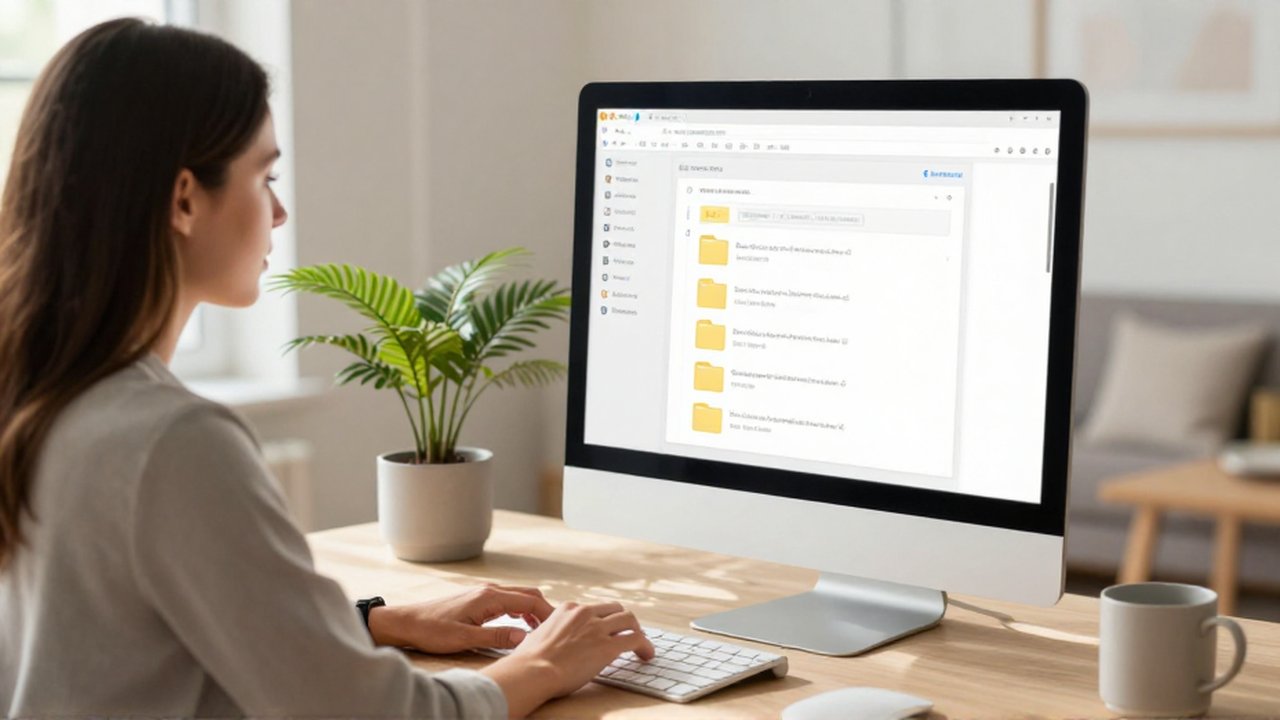
One of the biggest mistakes remote teams make is an unorganized Google Drive. Without a clear structure, employees waste time searching for the "latest version" of a file.
To prevent this, implement a hierarchical folder system based on departments or project lifecycles. For example, you might have top-level folders for "Finance," "Marketing," and "Operations." Inside "Marketing," you can create sub-folders for "Social Media Campaigns" or "Brand Assets."
Another critical step is mastering Shared Drives. Unlike "My Drive," which is owned by an individual, Shared Drives are owned by the organization. This is a vital distinction for remote security and continuity. When a team member is added to a Shared Drive, they automatically inherit the permissions, and all files created within that drive belong to the team, not the person who created them.
Optimizing communication workflows
Effective remote work requires a distinction between synchronous and asynchronous communication. Using the wrong tool for the wrong task can lead to constant interruptions or, conversely, critical delays.
Use Google Meet for synchronous communication. This includes brainstorming sessions, weekly stand-ups, or urgent problem-solving meetings. These are high-intensity interactions that require immediate feedback.
Use Gmail and Google Chat for asynchronous communication. Gmail is best for formal external communications or long-form internal announcements. Google Chat is ideal for quick, informal pings, similar to instant messaging, which helps mimic the "desk walk-by" experience of a physical office.
When using Docs or Sheets, utilize the Comments and Action Items feature. Instead of sending an email to say "I updated the spreadsheet," you can @mention a teammate directly in a cell or a comment. This notifies them immediately and keeps the conversation contextually linked to the work itself.
Security and permission management
In a remote environment, data security is a significant responsibility. Since files are accessed via the internet, managing who can see what is paramount.
The primary decision criteria for permissions should be the "Principle of Least Privilege." This means users should only have the level of access they strictly need to perform their jobs. Google Workspace offers three main levels:
| Permission Level | Capability | Best Use Case |
|---|---|---|
| Viewer | Can only read the file. | Sharing finalized reports or company policies. |
| Commenter | Can read and leave suggestions/comments. | Reviewing drafts or providing feedback on designs. |
| Editor | Can change content and structure. | Active collaborators working on a live project. |
Avoid the habit of setting files to "Anyone with the link can edit." This creates a massive security risk. Instead, always invite specific email addresses to files and regularly audit who has access to sensitive folders.
Common mistakes to avoid
Even with the best tools, remote teams often encounter friction due to poor digital habits.
The most frequent error is version confusion. While Google Workspace handles version history automatically, teams sometimes struggle because they don't name files clearly. Avoid naming files "Report_Final" and then "Report_Final_v2." Instead, use a standardized naming convention like "YYYY-MM-DD_ProjectName_Status."
Another mistake is notification fatigue. If every team member is notified of every single edit in a large document, they will eventually begin to ignore all notifications. To solve this, use the "Assign Task" feature sparingly and encourage teammates to use "Mute" on threads that are not relevant to them.
Finally, failing to check time zones is a common pitfall. Always use the "Secondary Time Zone" feature in Google Calendar settings to ensure that when you schedule a meeting, you are not inadvertently requesting a teammate to join at midnight.
Frequently asked questions
Can I use Google Workspace offline? Yes, by using the Google Chrome browser and enabling the "Offline" setting in Drive, you can edit Docs, Sheets, and Slides without an internet connection. Changes will sync automatically once you are back online.
What is the difference between Google Drive and Shared Drives? Google Drive (My Drive) is personal storage where files belong to the individual creator. Shared Drives are team-owned, meaning the files belong to the group, making it much safer for business continuity.
How do I prevent people from accidentally deleting files? You can set specific permissions. If you want someone to contribute content but not delete the entire folder or file, grant them "Commenter" access or use specific administrative controls to restrict deletion rights.
Is Google Workspace secure for sensitive business data? Yes, Google Workspace provides enterprise-grade security, including encryption and two-factor authentication. However, security also depends on your team's practices, such as using strong passwords and managing sharing permissions correctly.
Leave a Reply