
Best SSD upgrade options for old laptop computers
Introduction
Upgrading an old laptop with a Solid State Drive (SSD) is one of the most effective ways to extend the lifespan of an aging device. Many older computers struggle with slow boot times, delayed application launches, and general sluggishness primarily because they rely on traditional Hard Disk Drives (HDDs). These mechanical drives use spinning platters and moving parts, which are significantly slower and more fragile than modern flash-based storage technology.
By replacing a mechanical hard drive with an SSD, you can transform a frustratingly slow machine into a responsive tool suitable for daily tasks, student work, or small business administration. This upgrade matters because it addresses the primary hardware bottleneck in most legacy systems, providing a noticeable boost in speed without the high cost of purchasing an entirely new laptop. It is an ideal solution when your current hardware is still functional but feels obsolete due to software demands.
Benefits of switching to an SSD
The transition from an HDD to an SSD offers several immediate advantages that impact how you interact with your computer. Unlike traditional hard drives, SSDs have no moving parts. This lack of mechanical motion makes them much more resistant to physical shocks, which is particularly important for laptop users who are frequently moving their devices.
Speed is the most prominent benefit. An SSD offers much higher data transfer rates, meaning the operating system loads in seconds rather than minutes. Applications open almost instantly, and multitasking becomes much smoother because the drive can access data packets far more quickly. Additionally, SSDs are silent and consume less power, which can lead to slightly improved battery life on older laptops that were not originally optimized for high-speed storage.
Identifying the right SSD format

Before purchasing an upgrade, you must determine which physical connection your old laptop supports. Most older laptops use the 2.5-inch SATA interface. This is the standard format for traditional laptop hard drives, making it the most common upgrade path for devices manufactured in the last decade.
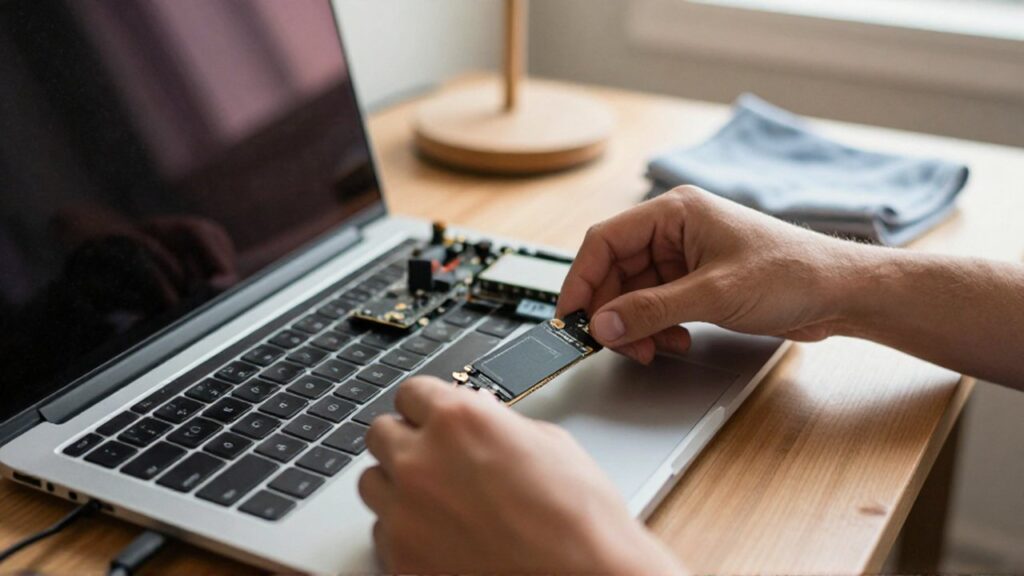
If your laptop is slightly more modern but still considered "old" by current standards, it might support an M.2 slot. M.2 drives look like small sticks of gum and plug directly into the motherboard. It is vital to check your laptop's technical manual or manufacturer's website to see if it uses a SATA connection or an M.2 slot, and whether the M.2 slot supports the NVMe protocol or only the slower SATA protocol. Using the wrong format will result in a drive that physically cannot fit into your machine.
Choosing between SATA and NVMe
The choice between SATA and NVMe depends entirely on your laptop's compatibility and your intended use. SATA SSDs are the universal standard for older hardware. They are incredibly reliable and offer a massive performance jump over HDDs, even though they are slower than the latest cutting-edge technology. For most users looking to breathe life into an old machine for web browsing, document editing, or video streaming, a SATA SSD is more than sufficient.
NVMe (Non-Volatile Memory Express) is a much faster standard that utilizes the PCIe interface. While NVMe drives provide much higher speeds, they are only compatible with specific newer motherboards. If your laptop supports NVMe, you will experience much faster file transfers and quicker system responsiveness. However, for many legacy laptops, a SATA upgrade is the only viable and highly effective option.
Key specifications to consider
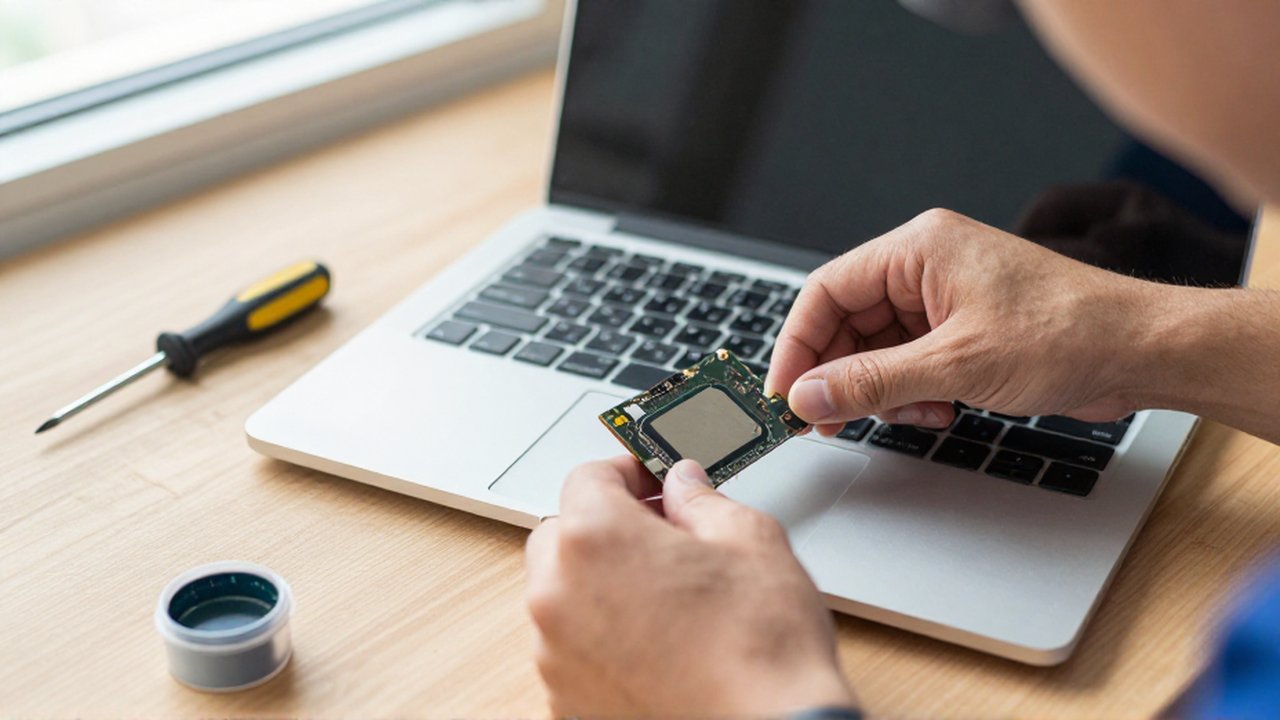
When selecting an SSD, do not focus solely on the brand name; look at the technical specifications that impact daily performance.
| Specification | Why it matters |
|---|---|
| Capacity | You need enough space for the OS, applications, and your personal files. |
| Read/Write Speeds | Determines how fast files open and how quickly you can save large documents. |
| Endurance (TBW) | Represents how much data can be written to the drive before it wears out. |
| Form Factor | Ensures the physical size (2.5-inch or M.2) matches your laptop's internal slot. |
For students and small business owners, a capacity of at least 500GB is generally recommended to ensure there is enough room for both the operating system and essential software without running out of space quickly.
Common mistakes to avoid during installation
One of the most frequent errors is forgetting to back up important data before performing the upgrade. Replacing a drive involves wiping the old one or cloning it; if something goes wrong during the process, your data could be lost. Always secure your files to an external drive or cloud storage before starting.
Another mistake is purchasing an SSD with insufficient capacity. While a 120GB or 240GB drive might be cheaper, modern operating systems and software updates consume a significant amount of space. A drive that is nearly full will actually perform slower than one with plenty of free space. Finally, ensure you have the necessary tools, such as a small precision screwdriver, to open your laptop casing safely.
Frequently asked questions
Will an SSD make my internet faster? No, an SSD improves the speed at which your computer processes data locally. It will make websites load faster by allowing your browser to access cached files more quickly, but it does not increase your actual internet connection speed provided by your ISP.
Do I need to reinstall my operating system? You have two choices: you can perform a "clean install" by installing a fresh version of Windows or macOS on the new drive, or you can "clone" your old hard drive to the new SSD using specialized software. A clean install often results in a faster, cleaner system.
Can I use an SSD if my laptop is very old? If your laptop uses a standard 2.5-inch SATA hard drive, you can almost certainly upgrade it to a SATA SSD. This is a standard interface that has been used for many years.
How long does an SSD upgrade typically last? Modern SSDs are highly durable and can last for many years of regular use. While they do have a finite number of write cycles, for typical home or office use, the drive will likely outlast the usable life of the laptop itself.
Leave a Reply