
Essential steps to secure your home broadband router
Introduction
Your home broadband router is the primary gateway between your private digital life and the public internet. It acts as a shield for every connected device in your household, from smartphones and laptops to smart televisions and security cameras. If this single device is poorly configured, it becomes a vulnerable entry point that hackers can exploit to intercept your personal data, monitor your online activities, or hijack your connection for illegal purposes.
Securing your router is a fundamental aspect of digital hygiene that should be addressed as soon as you set up a new connection or whenever you notice unusual network behavior. Protecting your network is not just about preventing access to your files; it is about ensuring the integrity of your entire digital ecosystem. By implementing a few essential security layers, you can significantly reduce the risk of cyberattacks and maintain a stable, private environment for your family or small business.
Change default administrative credentials

Most routers come pre-configured with generic usernames and passwords, such as "admin" and "password." These are public knowledge and are often the first things a malicious actor will try when attempting to access your network settings. If someone gains access to your router's administrative panel, they can change your security settings, redirect your traffic to fraudulent websites, or even lock you out of your own device.
To prevent this, you must access your router's configuration page and create a unique, complex password for the administrator account. This is different from your Wi-Fi password. While the Wi-Fi password allows devices to connect to the internet, the administrative password controls the router's internal settings. Use a combination of uppercase letters, lowercase letters, numbers, and special symbols to ensure it cannot be easily guessed or cracked by automated software.
Enable strong wireless encryption
Encryption is the process of scrambling the data sent between your devices and the router so that it cannot be read by unauthorized parties. Without encryption, anyone within range of your Wi-Fi signal could potentially capture your data packets. To secure your wireless signal, you must ensure that your router is using the most modern encryption standard available.
When configuring your wireless settings, look for the security mode options. You should always select WPA3 if your devices support it, as it is currently the most secure standard. If you have older devices that are incompatible with WPA3, WPA2-AES is the recommended alternative. Avoid using outdated protocols such as WEP or WPA, as these have well-documented vulnerabilities that make them extremely easy to breach. Pair this strong encryption with a long, complex Wi-Fi passphrase to provide a double layer of defense.
Update router firmware regularly
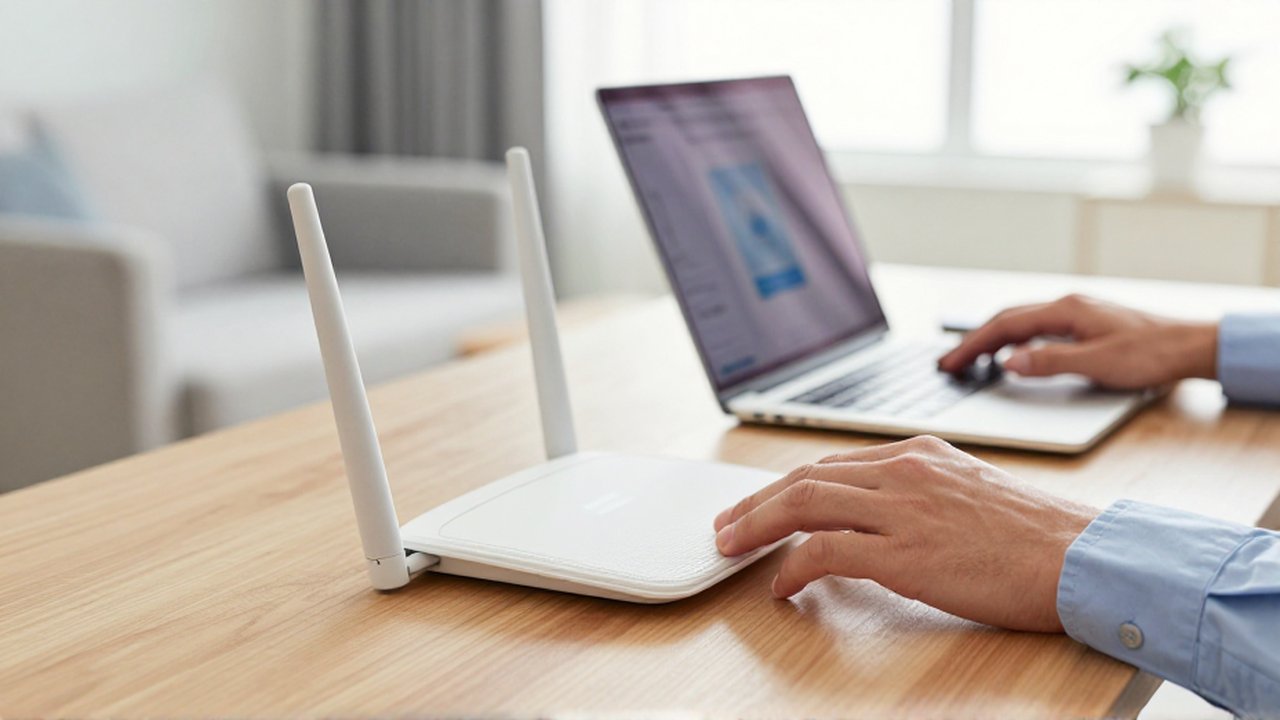
Router manufacturers frequently release firmware updates to fix security vulnerabilities and improve device performance. Because hackers are constantly finding new ways to exploit hardware, leaving your router running on old software is a major security risk. A router that has not been updated in months or years may contain "holes" that allow attackers to bypass your security entirely.
Check your router’s administration menu periodically for firmware update notifications. Many modern routers offer an "auto-update" feature; if yours does, enable it to ensure you are protected without having to remember to check manually. If your router does not support automatic updates, make it a routine habit to check the manufacturer's website or the device settings once every few months.
Disable remote management and WPS
Most routers include a feature called "Remote Management," which allows you to access your router's settings from anywhere in the world via the internet. While this might seem convenient, it significantly increases your attack surface by making your router's login page visible to the entire internet. Unless you have a specific, advanced need for this, you should disable remote management in your settings so that the administrative panel can only be accessed by a device physically connected to your local network.
Additionally, consider disabling Wi-Fi Protected Setup (WPS). This feature was designed to make connecting devices easier via a button press or a short PIN, but it has inherent security flaws. Hackers can use "brute force" methods to crack the WPS PIN, giving them instant access to your network. Manually entering your Wi-Fi password on your devices is much safer than relying on the WPS feature.
Frequently asked questions
How can I tell if my router has been compromised? Signs of a compromised router include sudden drops in internet speed, unexpected device reboots, unfamiliar devices appearing in your connected device list, or being redirected to strange websites when trying to browse.
Is it safe to use a guest network for visitors? Yes, using a guest network is a highly recommended security practice. A guest network creates a separate segment of your Wi-Fi that allows visitors to access the internet without giving them access to your primary network, where your private files and shared devices reside.
Does changing my Wi-Fi password frequently make me more secure? While changing your password periodically is good practice, it is more important to ensure that the password you use is long, complex, and follows modern encryption standards. Changing an easy-to-guess password frequently is less effective than having one very strong password.
Leave a Reply