
How to protect sensitive data on public Wi-Fi

Introduction
Public Wi-Fi networks are incredibly convenient for students, travelers, and small business owners in the Dominican Republic who need to stay connected while on the go. Whether you are working from a café in Santo Domingo or checking emails at an airport, these free connections provide immediate internet access without the need for cellular data. However, this convenience comes with significant digital risks that can compromise your personal information and privacy.
The primary danger lies in the fact that many public networks are unencrypted or poorly secured, making it easy for malicious actors to intercept the data traveling between your device and the router. Without proper precautions, sensitive information such as login credentials, bank details, and private messages can be captured by third parties. Understanding how to safeguard your digital footprint is essential for anyone using mobile devices in shared digital environments.
Risks of using open networks

When you connect to a public hotspot, you are sharing a communication channel with everyone else on that same network. This creates several vulnerabilities that hackers frequently exploit to steal data. One of the most common methods is the "Man-in-the-Middle" (MitM) attack, where a cybercriminal positions themselves between your device and the website you are visiting to "listen" to your traffic.
Another prevalent threat is the creation of "Evil Twin" hotspots. This occurs when a criminal sets up a fraudulent Wi-Fi network with a name identical or very similar to a legitimate one, such as "CoffeeShop_Free_WiFi." Once you connect, all your internet activity passes directly through the attacker's hardware. Furthermore, some networks may lack basic encryption, meaning that even if you are not intentionally sharing data, any unencrypted packets sent by your device can be read by others nearby.
Essential tools for digital security
To mitigate these risks, certain digital tools act as a vital line of defense. Relying solely on your device's default settings is often insufficient when dealing with hostile network environments.
- Virtual Private Networks (VPN): A VPN is perhaps the most effective tool for public Wi-Fi users. It creates an encrypted tunnel for your data, ensuring that even if someone intercepts your connection, they will only see scrambled, unreadable information.
- Multi-Factor Authentication (MFA): By enabling MFA on all sensitive accounts, you add a layer of security that goes beyond passwords. Even if a hacker manages to steal your credentials via public Wi-Fi, they will still be unable to access your accounts without the second verification step.
- Browser Security Features: Modern browsers offer built-in protections, such as warnings when visiting non-HTTPS websites. Ensuring that you only interact with sites that show the padlock icon in the address bar is a fundamental practice.
Practical steps to secure your connection
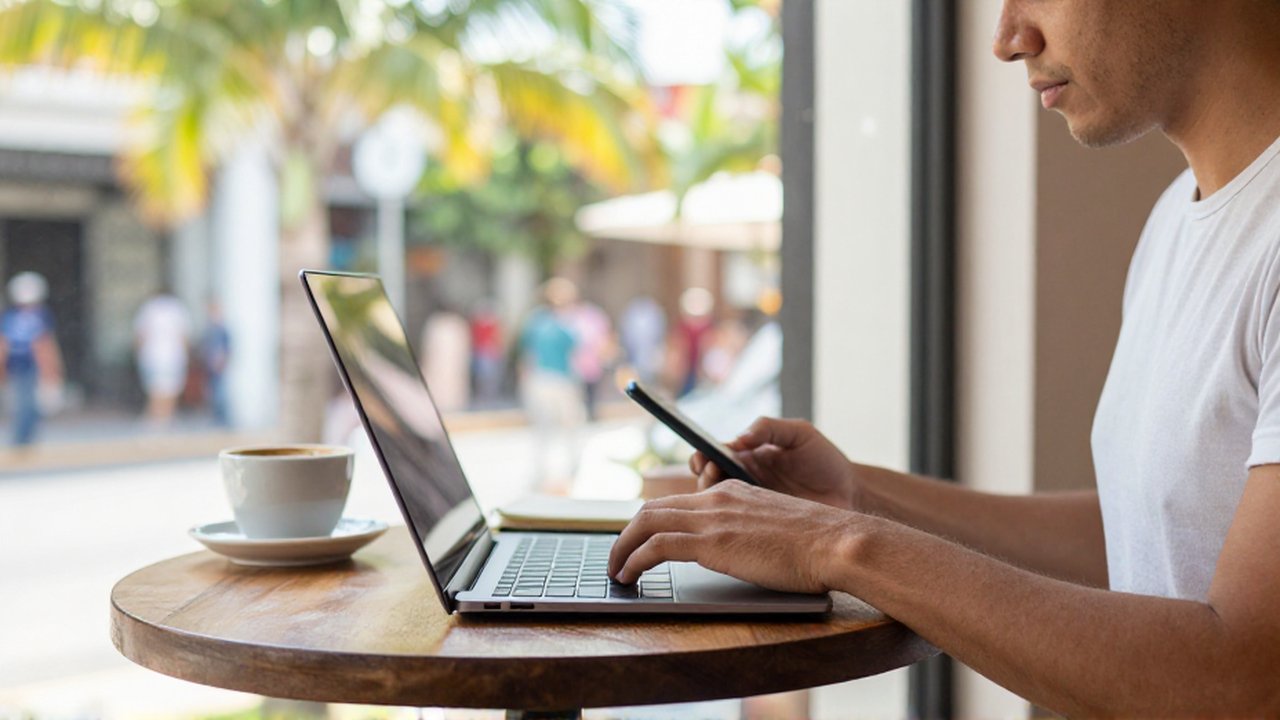
Protecting your sensitive data does not always require complex technical knowledge. Implementing a few disciplined habits can significantly reduce your exposure to cyber threats.
First, always check for the HTTPS protocol before entering any information. The "S" stands for secure, indicating that the communication between your browser and the server is encrypted. If a website asks for a password or credit card number but only shows "HTTP" in the address bar, disconnect immediately.
Second, manage your device settings to prevent automatic connections. Most smartphones and laptops are configured by default to join known or open networks automatically. This can lead to your device connecting to a malicious "Evil Twin" network without your knowledge. Disable the "Auto-Join" feature in your Wi-Fi settings to ensure you remain in control of every connection you make.
Third, avoid performing high-risk activities on public networks. This includes online banking, accessing medical records, or making purchases via credit card. If you absolutely must handle sensitive transactions, it is much safer to use your mobile phone's cellular data (LTE/5G) rather than a shared Wi-Fi connection.
Common mistakes to avoid
Many users fall victim to security breaches because of simple oversight. One frequent mistake is using the same password for multiple services. If an attacker captures your credentials on a public network, they can use those same details to compromise your other accounts through credential stuffing.
Another error is forgetting to turn off file sharing. On laptops, settings that allow other users on the network to see your shared folders or printers should be disabled when using public Wi-Fi. Lastly, many people ignore software updates. These updates often contain critical security patches that fix vulnerabilities that hackers use to gain access to your mobile devices.
Frequently asked questions
Can a VPN protect me from all Wi-Fi threats? While a VPN is excellent for encrypting your data and preventing interception, it cannot protect you from all threats, such as downloading malware or falling for phishing scams via email.
Is cellular data safer than public Wi-Fi? Generally, yes. Mobile networks (4G/5G) use much more robust encryption and authentication protocols than most public Wi-Fi hotspots, making it a more secure choice for sensitive tasks.
Should I use a public Wi-Fi without a password? You should treat all unencrypted, open networks as high-risk. If you must use one, always use a VPN and avoid accessing any personal or financial accounts.
Leave a Reply