
Steps to transfer data between tablets and computers

Introduction
Transferring data between a tablet and a computer is a fundamental digital skill required for organizing files, backing up important documents, and managing multimedia content. Whether you are a student moving lecture notes to a laptop or a small business owner syncing inventory spreadsheets, knowing how to bridge these two devices ensures your information remains accessible and secure. This process allows you to leverage the portability of a tablet alongside the high processing power and storage capacity of a computer.
Efficient data transfer is appropriate whenever you need to free up storage space on your mobile device or when you need to edit large documents that are easier to handle on a desktop interface. Understanding the various methods available—ranging from physical cables to cloud-based ecosystems—allows you to choose the most reliable option based on your internet speed, the file size, and the urgency of the task.
Use a USB cable for direct physical connection
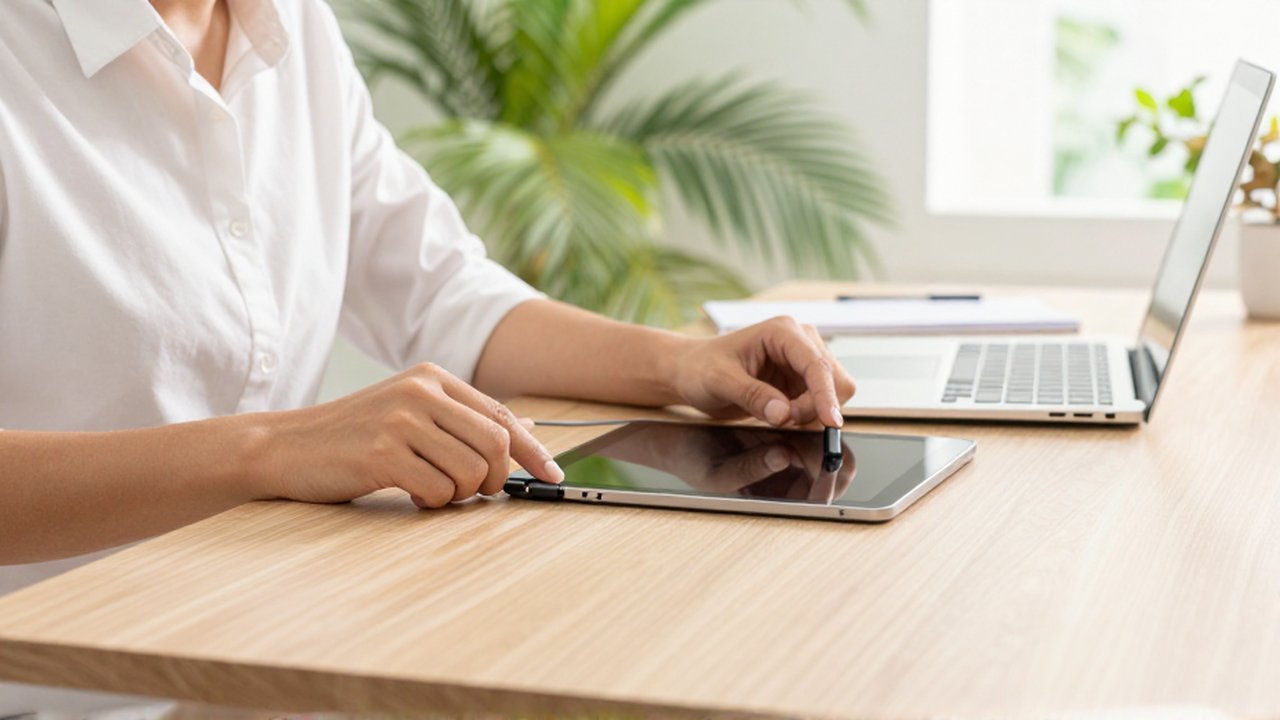
The most traditional and often fastest method for transferring large files is using a physical connection. Most modern tablets use USB-C or Lightning cables, which can be plugged directly into your computer to establish a wired link. This method is highly reliable because it does not depend on internet stability and offers high data transfer speeds.
To perform this transfer, connect your tablet to the computer using the appropriate cable. On Android tablets, you will typically see a notification on the screen asking to "Allow access to device data" or "Transfer files." Once you select the file transfer mode, the tablet will appear as a removable drive in your computer's file explorer. On iPads, you may need to use a specific application provided by the manufacturer to manage files through the cable. From there, you can simply drag and drop folders from the tablet to your computer or vice versa.
Utilize cloud storage services for wireless synchronization

Cloud storage is the most convenient method for users who want their files to be available across all devices automatically. Services like Google Drive, Dropbox, OneDrive, or iCloud allow you to upload files from your tablet to a remote server, which can then be downloaded onto your computer through a web browser or a desktop application.
This method is ideal for smaller files, such as PDFs, Word documents, or single photos. The main benefit is the seamless synchronization; when you save a change on your tablet, the updated version is reflected on your computer. However, the speed of this method is limited by your internet connection. If you are working with high-definition videos or massive photo albums, uploading and downloading these files via the cloud can take a significant amount of time and consume a large portion of your data plan.
Transfer files via external storage devices
If you have a vast amount of data and do not want to rely on long cable connections or slow internet, using an external storage device like a USB flash drive or an external hard drive is an excellent alternative. This method is particularly useful for professionals moving massive libraries of media or large backups.
Many modern tablets are compatible with USB OTG (On-The-Go) technology, which allows them to read and write to external drives. To use this method, plug a compatible flash drive into your tablet, move the desired files to the drive using a file management app, and then unplug it. Once the drive is connected to your computer, you can transfer the files directly to your local storage. This creates a "middleman" step that provides high speed and physical control over your data.
Comparison of transfer methods
| Method | Best For | Main Advantage | Main Limitation |
|---|---|---|---|
| USB Cable | Large files and backups | High speed and stability | Requires physical tethering |
| Cloud Storage | Small files and documents | Automatic synchronization | Depends on internet speed |
| External Drive | Massive media libraries | High capacity and speed | Requires extra hardware |
Common mistakes to avoid during data transfer
One of the most frequent errors is disconnecting a device while a transfer is still in progress. When using a USB cable, interrupting the connection can lead to corrupted files or, in some cases, errors in the device's file system. Always wait for the progress bar to complete and use the "Eject" or "Safely Remove Hardware" option on your computer before unplugging the cable.
Another mistake is assuming that all files are transferred correctly without verification. After moving a large folder, it is a best practice to check the file size or the number of items in both the source and the destination to ensure nothing was missed. Additionally, avoid transferring sensitive or highly private information over public Wi-Fi when using cloud services, as this increases the risk of interception.
Frequently asked questions
Will transferring files delete them from my tablet? No, a standard transfer is actually a "copy" process. The files stay on your tablet unless you manually select the "move" command or delete them after the transfer is confirmed to be successful.
Why is my computer not recognizing my tablet via USB? This can happen due to a faulty cable, a dirty charging port, or because the tablet is set to "Charge Only" mode instead of "File Transfer" mode. Try a different cable or check the tablet's USB settings.
Can I transfer files between a tablet and a computer without internet? Yes, you can use a USB cable or an external USB flash drive (via OTG) to transfer data without any internet connection.
Is cloud storage safe for sensitive documents? Cloud storage is generally secure, but you should always enable two-factor authentication (2FA) on your accounts to add an extra layer of protection to your digital files.
Leave a Reply