
Steps to enable two-factor authentication on social media

Introduction
Two-factor authentication, commonly referred to as 2FA, is an indispensable security layer designed to protect your digital identity. In an era where password theft and phishing attacks are increasingly sophisticated, relying solely on a password is no longer sufficient to keep social media accounts safe. 2FA adds a second step to the login process, requiring not just something you know (your password) but also something you possess (such as a code sent to your phone).
By implementing this feature, you create a significant barrier for hackers. Even if a malicious actor manages to obtain your login credentials through a data breach or a deceptive link, they will still be unable to access your account without the secondary authentication factor. This practice is especially critical for users who manage business profiles, share personal information, or use social media for professional networking.
Enabling 2FA is a proactive measure that minimizes the risk of unauthorized account takeovers. While it adds a small amount of time to the login process, the peace of mind and the security benefits it provides far outweigh the minor inconvenience. Learning how to set this up across different platforms is one of the most effective ways to strengthen your overall digital security posture.
Importance of multi-factor security
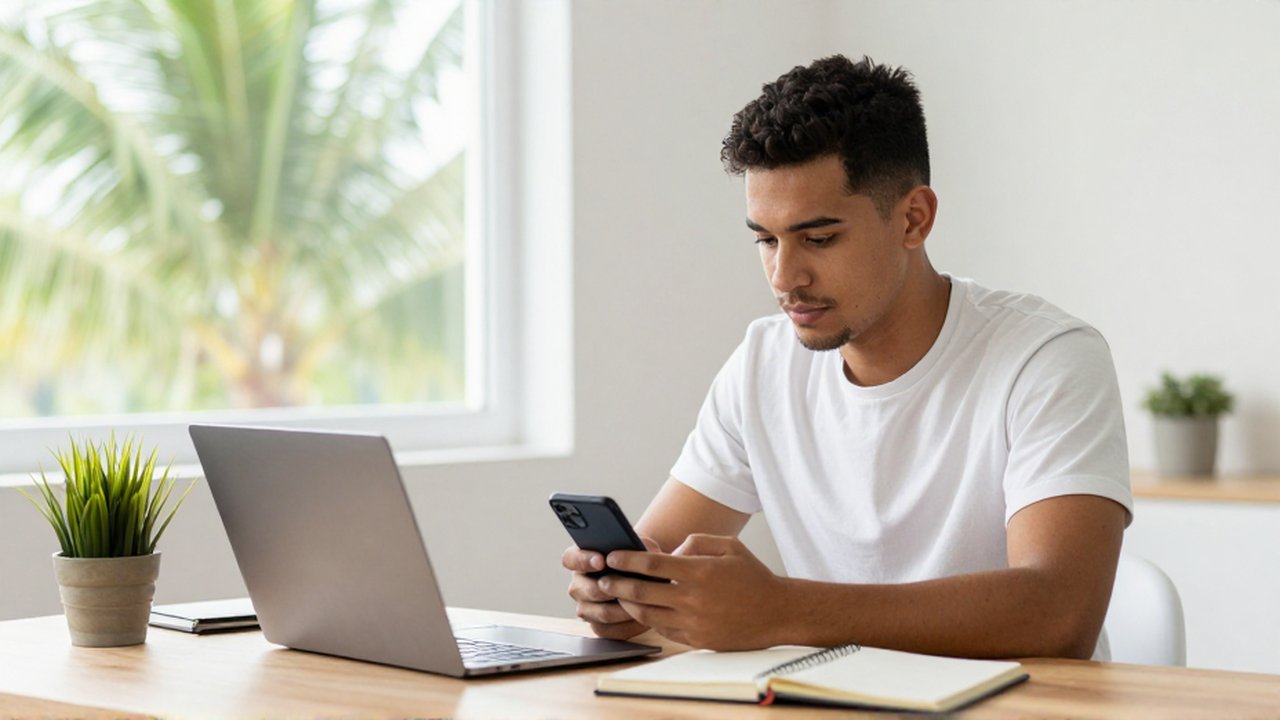
Using a single password creates a single point of failure. If that password is leaked, your entire digital presence on that platform is compromised. Multi-factor authentication shifts the security model from "knowledge-based" to "possession-based." This means that even if your secret information is exposed, your physical device serves as a secondary gatekeeper.
For small business owners and students in the Dominican Republic and beyond, social media accounts are often tied to professional reputations and personal communications. A compromised account can lead to identity theft, the spread of misinformation via your profile, or the loss of access to important contact networks. Implementing 2FA ensures that your digital footprint remains under your direct control.
Common methods for two-factor authentication
Before beginning the setup process, it is important to understand the different ways you can receive your security codes. Each method offers a different balance of convenience and security.
| Method | Description | Security Level |
|---|---|---|
| SMS/Text Message | A code is sent to your mobile phone via text message. | Moderate |
| Authentication App | An app (like Google Authenticator) generates time-based codes. | High |
| Security Keys | A physical USB or NFC device that you plug into your device. | Very High |
| Backup Codes | A list of one-time use codes provided during setup for emergencies. | Essential |
While SMS is the most accessible method for most people, it is slightly more vulnerable to "SIM swapping" attacks. Authentication apps are generally considered more secure because the codes are generated locally on your device and are not transmitted over cellular networks.
General steps to enable 2FA on most platforms

Although every social media platform has a slightly different interface, the logic behind enabling 2FA remains largely consistent across Facebook, Instagram, X (formerly Twitter), and LinkedIn.
- Access Security Settings: Log into your account and navigate to the "Settings" or "Settings and Privacy" menu. Look for a subsection labeled "Security," "Password and Security," or "Account Center."
- Locate Two-Factor Authentication: Within the security menu, find the option for "Two-Factor Authentication" or "Login Security."
- Select Your Preferred Method: Choose between receiving codes via SMS, using an authentication app, or using a security key.
- Verify the Connection: The platform will ask you to confirm the method. If using an app, you may need to scan a QR code. If using SMS, you will receive a test code to ensure the number is correct.
- Save Your Backup Codes: This is a critical step. Most platforms will provide a set of "Recovery" or "Backup" codes. Write these down and store them in a safe, offline location. These codes are your only way back into your account if you lose your phone.
Best practices for maintaining account security
Enabling 2FA is the first step, but maintaining a secure environment requires ongoing attention. You should regularly review your "Active Sessions" or "Where You're Logged In" section in your settings. If you see a device or location that you do not recognize, log out of all sessions immediately and change your password.
Another vital practice is to avoid using the same password across multiple platforms. If one site is breached, hackers will attempt to use those same credentials on your social media accounts. Using a dedicated password manager can help you maintain unique, complex passwords for every service while allowing you to use 2FA seamlessly.
Frequently asked questions
What happens if I lose my phone with the authentication app? If you lose your device, you can use the backup codes you saved during the initial setup to regain access. If you did not save backup codes, recovery can be a difficult and lengthy process involving the platform's official identity verification tools.
Is SMS authentication safe enough? SMS is significantly better than having no two-factor authentication at all. However, it is less secure than using an authentication app because hackers can sometimes intercept text messages through specialized techniques.
Does 2FA slow down the login process? It adds a few extra seconds to the initial login on a new device. However, most platforms remember your "trusted devices," meaning you will likely only need to use the second factor when logging in from a new computer, a new browser, or after clearing your cache.
Can I use the same authentication app for all my social media? Yes. Most authentication apps are universal and can manage codes for dozens of different services, including social media, email, and banking apps, all in one place.
Leave a Reply