
Steps to clean a computer infected with spyware

Introduction
Spyware is a type of malicious software designed to infiltrate your computer system to monitor your activities without your consent. Once installed, it can track your internet browsing habits, capture sensitive keystrokes, and harvest personal information such as passwords, credit card numbers, and identity details. Dealing with spyware is critical because it operates silently in the background, often bypassing standard security measures to ensure constant data collection.
Cleaning an infected computer is a high-priority task that requires a systematic approach to ensure all traces of the threat are eliminated. If you notice sudden performance drops, unexpected pop-ups, or unauthorized browser changes, your device may already be compromised. Taking immediate action helps prevent identity theft and restores the privacy and functionality of your digital workspace.
Signs of a spyware infection
Before starting the cleaning process, it is helpful to identify the symptoms that indicate your system has been compromised. Spyware does not always present loud or obvious warnings, but certain patterns often emerge. One common sign is a significant slowdown in system performance, as the malware consumes CPU and memory resources to run its monitoring processes.
Another indicator is the appearance of persistent browser hijacking, where your homepage, default search engine, or new toolbars change without your intervention. You might also notice unusual pop-up advertisements that appear even when you are not browsing the web, or your internet data usage might spike unexpectedly. Recognizing these signs early can prevent the spyware from gathering more sensitive data.
Preparation for the cleaning process
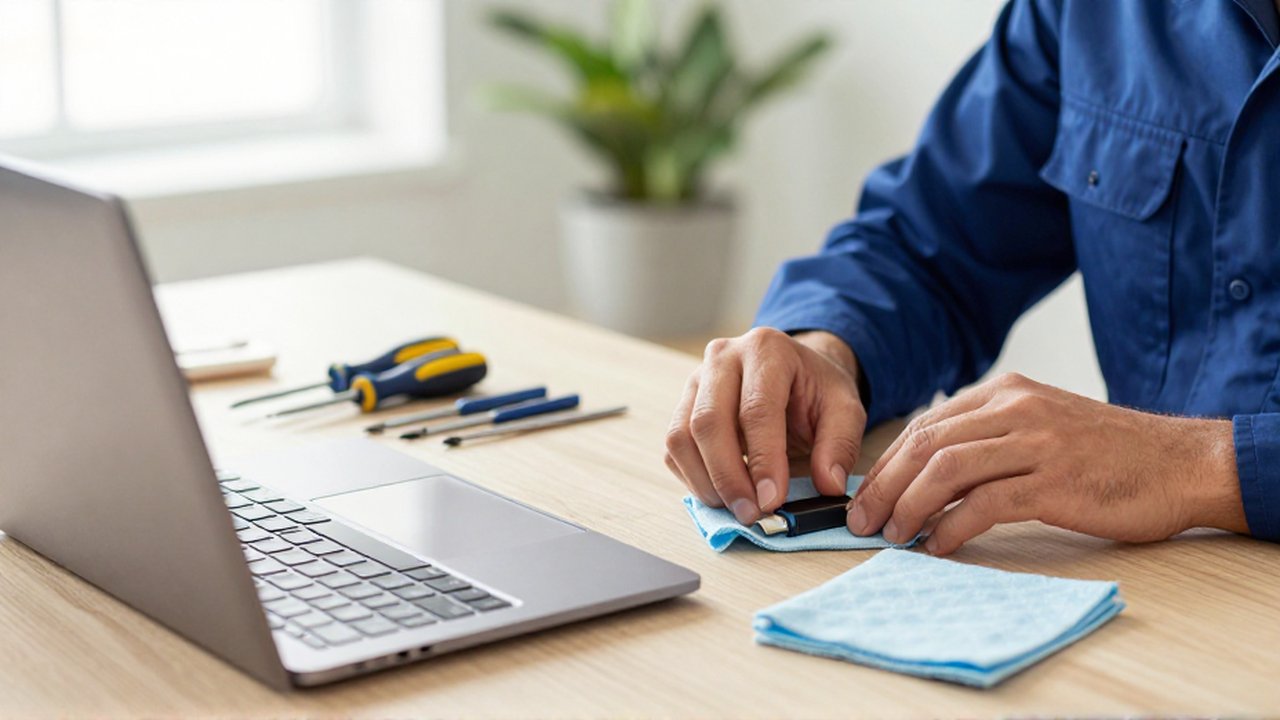
To clean a device effectively, you must prepare the environment to prevent the malware from spreading or blocking your attempts to remove it. The first step is to disconnect the computer from the internet. Since most spyware communicates with a remote server to send your stolen data, cutting the connection can stop the data leak and prevent the malware from downloading further instructions or updates.
Next, enter Safe Mode on your operating system. Safe Mode loads only the essential files and drivers required for the system to function, which often prevents the spyware from launching automatically during the boot process. This makes it much easier to delete the malicious files without the software actively defending itself against removal.
Removal steps using security tools
Once the system is in Safe Mode and disconnected from the internet, the next phase is the active removal of the threat. A single antivirus scan is often insufficient because modern spyware can hide in multiple locations. You should follow a layered approach:
- Run a deep scan with reputable antivirus software: Use a trusted security suite to perform a full system scan. This will identify known signatures of spyware and attempt to quarantine or delete them.
- Utilize specialized anti-malware tools: Some spyware is specifically designed to evade traditional antivirus programs. Using a dedicated anti-malware scanner can provide a second layer of defense by looking for behaviors typical of monitoring software.
- Check browser extensions and add-ons: Spyware frequently hides within web browsers. Manually inspect your extensions and remove anything you did not intentionally install.
- Clear temporary files and cache: Malware often leaves traces in temporary folders. Clearing these can ensure that no leftover scripts remain to re-infect the system.
Post-cleaning security measures
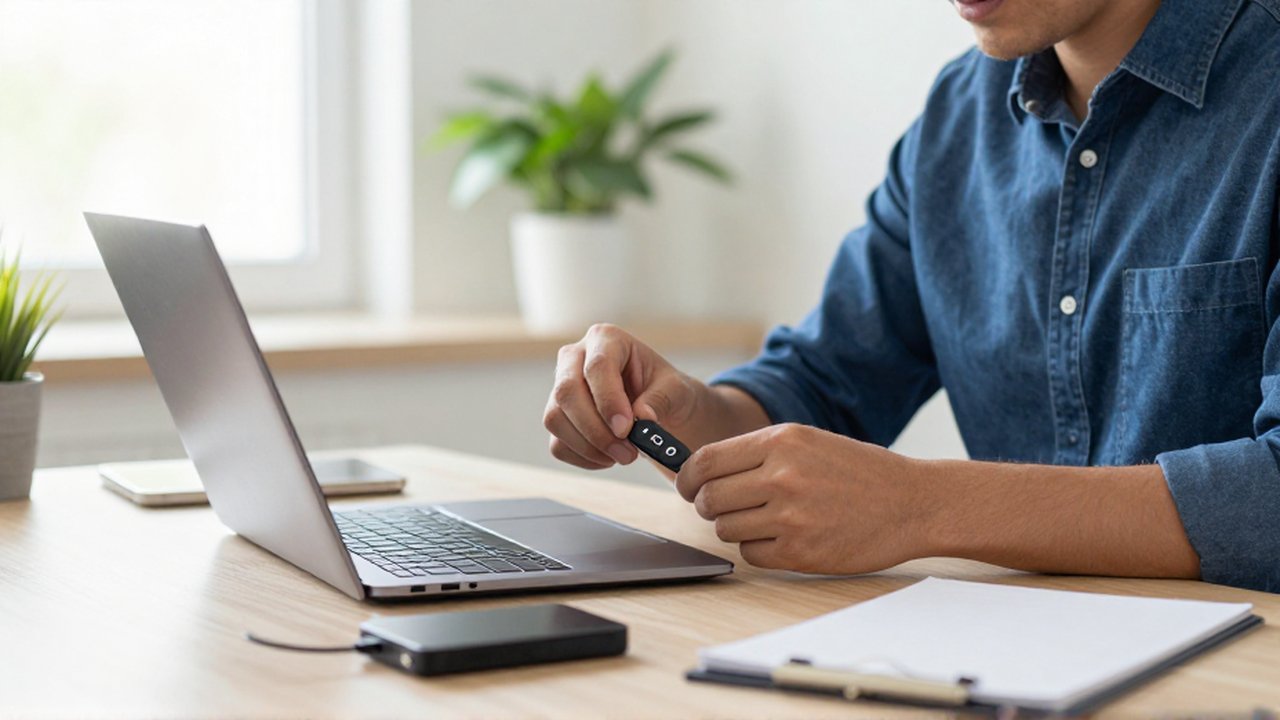
After successfully removing the spyware, you cannot assume the system is entirely safe. The malware may have already compromised your credentials. The most important step after cleaning is to change all of your passwords, especially for sensitive accounts like email, online banking, and social media. It is highly recommended to use a unique, complex password for every service and to implement multi-factor authentication (MFA) wherever possible.
Furthermore, you should update your operating system and all installed software to the latest versions. Security patches often fix the vulnerabilities that allowed the spyware to enter your system in the first place. Finally, consider running a final scan in normal mode to ensure the environment remains clean and stable.
Common mistakes to avoid
One of the most frequent mistakes users make is attempting to use "free" or unknown cleaning tools found via search engine ads. Many of these tools are actually "scareware" or even more advanced forms of spyware themselves. Always use well-known, verified security software.
Another error is performing a quick scan instead of a full system scan. Spyware often nests itself in deep directories or system folders that a quick scan will overlook. Lastly, do not ignore the importance of backups. While backups do not clean an infection, having a clean backup of your data can be a lifesaver if the infection requires a full system reinstallation.
Frequently asked questions
Can I clean spyware without reinstalling the operating system? In most cases, yes. Using professional security tools in Safe Mode is effective for most standard infections. However, if the spyware has altered core system files or caused extreme instability, a complete reinstallation of the operating system may be the only way to guarantee total cleanliness.
How can I prevent spyware from returning? Prevention relies on a combination of cautious browsing habits, keeping software updated, and using robust security software. Avoid clicking on suspicious links in emails, do not download files from untrusted websites, and always verify the source of any software you install.
Will cleaning my computer delete my personal files? Standard security software is designed to delete only the malicious files. However, there is always a slight risk when software interacts with system directories. It is always best practice to have regular backups of your important documents before performing deep cleaning or system repairs.
How do I know if the cleaning was successful? A successful cleaning is indicated by the return of normal system speed, the disappearance of unwanted pop-ups, and the restoration of your original browser settings. Running a final scan with two different security tools can provide higher confidence that the threat is gone.
Leave a Reply