
How to manage app permissions on Android and iOS devices

Introduction
App permissions are the digital gatekeepers that determine what information a mobile application can access on your smartphone. These permissions include sensitive data such as your real-time location, contact lists, camera feed, microphone access, and even your files. Managing these settings is a fundamental aspect of digital privacy, as it prevents unauthorized tracking and protects your personal information from being harvested by third-party developers or malicious software.
It is appropriate to review these settings whenever you install a new application or when you notice unusual behavior on your device, such as rapid battery drain or unexpected pop-ups. By taking control of your permissions, you ensure that apps only use the tools they strictly need to function. This practice not only enhances your personal security but also optimizes device performance by limiting background processes that consume data and energy.
Importance of controlling mobile access
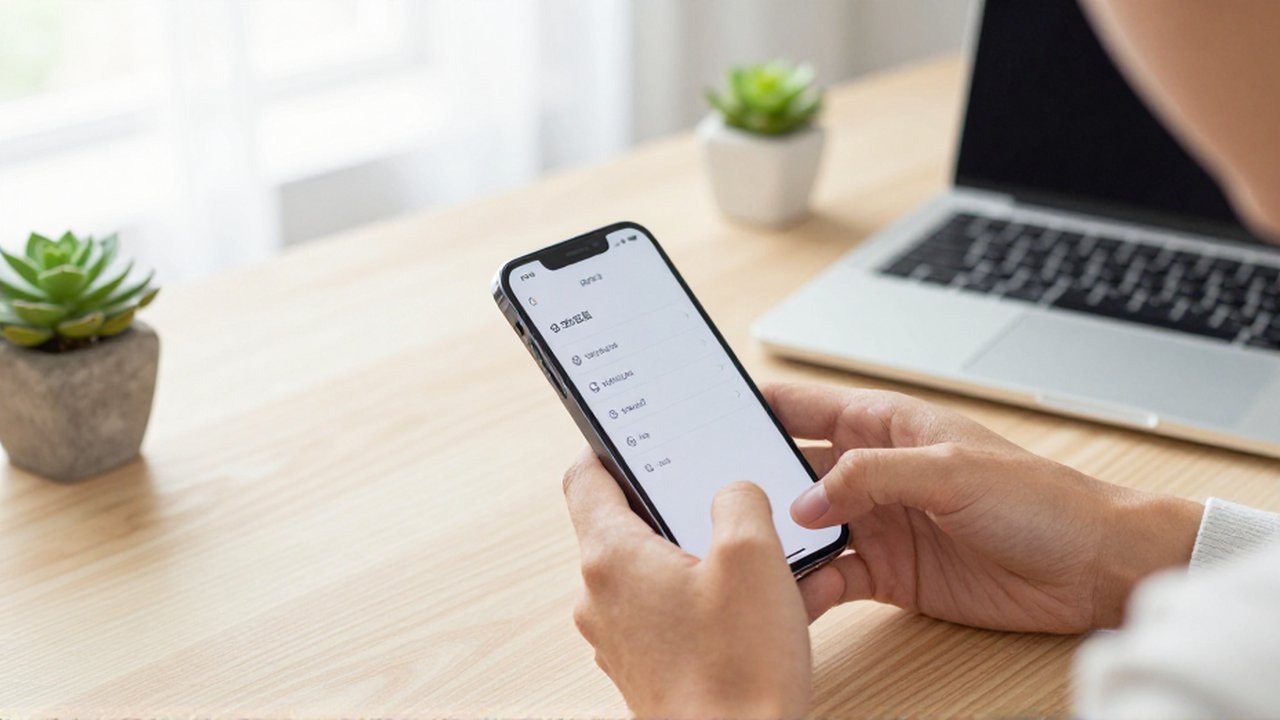
Every time you download an app, you enter into a silent agreement regarding your data. While some requests are logical—such as a navigation app asking for your GPS location—others can be invasive. For instance, a simple calculator app has no functional reason to access your microphone or your contact list. When apps request more access than necessary, they create potential privacy leaks that can be exploited for targeted advertising or more serious security breaches.
Regularly auditing these permissions helps you maintain a "principle of least privilege." This means providing an application with the minimum level of access required to perform its intended task. By practicing this, you reduce your digital footprint and minimize the risk of accidental data exposure.
How to manage permissions on Android devices
Android offers a highly granular approach to permission management, allowing users to control access both globally and on an app-by-app basis. Depending on your version of Android, the interface may vary slightly, but the core logic remains consistent.
To manage permissions, navigate to your device Settings and locate the Apps or Applications section. From there, you can select a specific app to see exactly what it is permitted to do. Alternatively, many modern Android versions provide a Privacy Dashboard or a Permission Manager. This is often the most efficient way to audit your device, as it allows you to view all apps that have access to a specific category, such as "Camera" or "Location," in one unified list.
When reviewing permissions, look for the following categories:
- Location: Decide if an app needs your precise location or just an approximate one.
- Camera and Microphone: Restrict these to apps that require them for communication or photography.
- Contacts and Calendar: Be cautious with social media apps requesting access to your personal network.
- Files and Media: Ensure only storage-heavy apps (like photo editors) can access your gallery.
How to manage permissions on iOS devices

Apple’s iOS ecosystem is designed with a strong emphasis on privacy, providing users with clear prompts and easy-to-use management tools. iOS uses a permission model that often asks for authorization the moment an app attempts to use a specific feature.
To perform a manual audit on an iPhone or iPad, open the Settings app and scroll down to find the Privacy & Security section. Within this menu, you will see a list of different data types, such as Location Services, Microphone, Camera, and Tracking. Selecting any of these categories will reveal every app that has requested or currently holds permission for that specific sensor or data set.
Another effective method on iOS is to scroll to the bottom of the main Settings menu. There, you will see a list of all installed applications. Tapping on an individual app will show you a dedicated list of every permission that specific application has requested, making it easy to toggle individual access on or off.
Best practices for digital privacy
Maintaining privacy is a continuous process rather than a one-time setup. To keep your mobile devices secure, consider adopting these habits:
- Use "Only While Using the App": Whenever possible, select the option that grants permission only when the app is actively open on your screen. This prevents apps from tracking your location or accessing your sensors in the background.
- Deny unnecessary requests: If an app asks for a permission that seems irrelevant to its function, do not be afraid to click "Deny." Most apps will still work, albeit with limited features.
- Review permissions periodically: Make it a habit to check your privacy settings once a month to ensure no new apps have gained access to sensitive data through updates.
- Watch for "Always Allow": Be extremely wary of applications that request "Always Allow" for location services unless it is a mission-critical tool like a dedicated fitness tracker or emergency service app.
Frequently asked questions
Will denying permissions break my apps? Most apps are designed to handle permission denials gracefully. If you deny a permission that the app needs for a specific feature (like the camera for a social media app), that specific feature will not work, but the rest of the application should function normally.
What is the difference between approximate and precise location? Precise location uses GPS to give an exact coordinate, while approximate location uses network data (like Wi-Fi or cell towers) to give a general area. For most apps, such as weather or news, approximate location is sufficient and much more private.
Can apps access my data even if I deny permission? While denying permission prevents direct access to specific hardware or files, some apps may still collect telemetry data (like device model or OS version) or track your activity through other means like IP addresses. Managing permissions is a vital layer of defense, but it is not a complete shield against all forms of data collection.
Leave a Reply